Motivation
Previously, I was using AnyDesk as my remote desktop software, but recently the IT department at my school mentioned that AnyDesk has security vulnerabilities and can no longer be used. On Linux, the only allowed remote desktop software are VNC and XRDP. Both VNC and RDP are remote desktop protocols, but VNC is an open-source protocol, while RDP is a proprietary protocol by Microsoft. The advantage of VNC is its cross-platform support, including Linux, Windows, macOS, etc.; although RDP is proprietary to Microsoft, there are open-source implementations available on Linux, such as XRDP.
VNC’s drawback is its slower speed and higher latency. However, its advantage is that when using VNC on a Linux system, the remote desktop and local desktop are completely separate and do not interfere with each other. Additionally, many Linux systems and macOS come with built-in support for VNC services, eliminating the need for additional software installation.
macOS Connecting to Ubuntu
Ubuntu comes with a built-in VNC service, and macOS has a built-in VNC client, making it very easy to connect to Ubuntu from macOS. Before connecting, we need to do some preparation work.
-
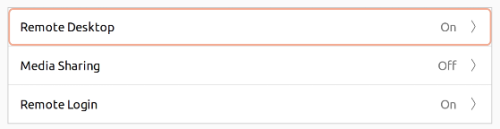
Enable VNC Service on Ubuntu. Although Ubuntu has a built-in VNC service, it is disabled by default, so we need to enable it first. If you are using the Gnome desktop environment, go to the “Settings” interface, click on “Sharing,” and then enable the “Remote Desktop” option:
-
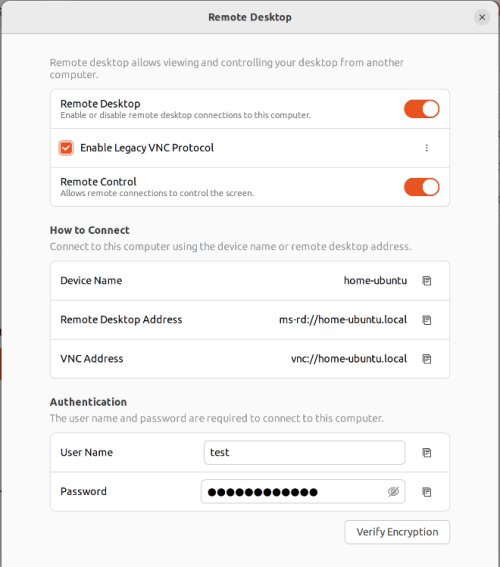
Set VNC Password. After enabling the “Remote Desktop” option, you will see the VNC service settings interface. Follow the prompts to set it up:
-
Enable Password Authentication. After checking the “Enable Legacy VNC Protocol” option, click on the three dots on the right and check “Require a password”:
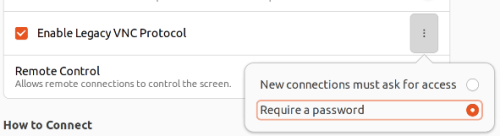
If you do not check this option, a confirmation window will pop up each time you connect, asking whether to allow the connection. If there is no one on the remote computer to confirm, you will not be able to connect:
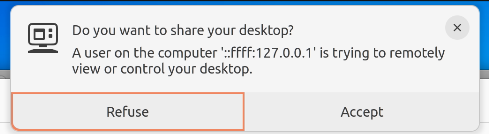
-
Connect to Ubuntu from macOS. You can use the built-in file browser Finder on macOS to connect to the remote computer via VNC. However, before doing so, we need to first connect to the remote computer using SSH and perform port forwarding:
1ssh -L 22590:localhost:5900 username@remote_ipThe above command connects to the remote computer while mapping the remote computer’s port 5900 to the local port 22590. The reason for this is that the VNC service uses port 5900 by default, but for security reasons, many systems may have port 5900 closed, so we need to use SSH for port forwarding. Once the SSH connection is successful, you can connect to the remote computer in Finder:
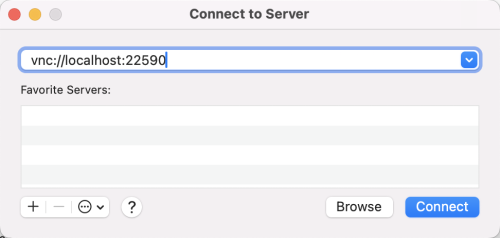
In the pop-up window, enter the VNC password:
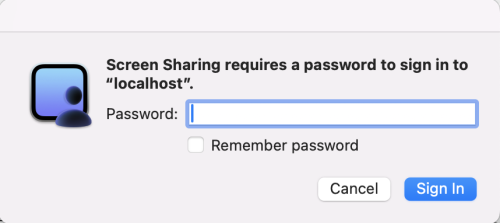
If everything goes well, you should see the remote computer’s desktop.