
Motivation
This is the fourth article in the “Nvidia GPU” series, which mainly records how to use Nvidia GPU, especially on Linux systems. In previous articles, I recorded the settings for using Nvidia GPU on Ubuntu, including games, CUDA programming, deep learning, Docker containers, etc. Later, I switched to Fedora system, thinking that configuring Nvidia GPU for CUDA programming and deep learning environment on Fedora would be similar to that on Ubuntu, and with the support of RPM Fusion, installation and configuration would be more convenient. However, I actually encountered unexpected difficulties, so I had to write another article to record these problems and solutions.
Simply put, the problem encountered in the previous article was that the GCC version used by Fedora 42 system is incompatible with Nvidia’s CUDA version, resulting in the inability to use the CUDA compiler. For details, please refer to the last part of the previous article Nvidia GPU (3): Games, CUDA Programming, Deep Learning, Docker Containers, etc. on Fedora. To solve this problem, I decided to configure Nvidia GPU for CUDA programming and deep learning environment on Fedora using Docker containers.
Other articles in this series can be found at:
- Nvidia GPU (1): Games, CUDA Programming, Deep Learning, Docker Containers, etc. on Ubuntu
- Nvidia GPU (2): Accelerate Video Editing and Transcoding for FFmpeg Using GPU
- Nvidia GPU (3): Games, CUDA Programming, Deep Learning, Docker Containers, etc. on Fedora
Container Solution
To bypass the incompatibility issue between Fedora 42 system and CUDA compiler, I decided to use container technology to create an Ubuntu-based environment using the image provided by Nvidia.
But I still took some detours in the process of creating it, mainly because I had always wanted to use Podman to replace Docker, so I tried to use Podman to create a CUDA programming environment this time. However, due to permission issues, Nvidia’s support issues, etc., I encountered some unsolvable problems. In the end, I gave up using Podman and continued to use Docker. I will write an article to introduce Podman when I have the chance. In the future, I will also gradually transfer container services to Podman, so I will not elaborate here. Here, I mainly record the process of setting up a CUDA programming and deep learning environment using Docker.
Basic Framework
We have installed Nvidia GPU and drivers on the Fedora system. To allow container applications to use Nvidia GPU, we also need to install Nvidia’s Docker support. Therefore, the basic framework of the entire environment is as follows:
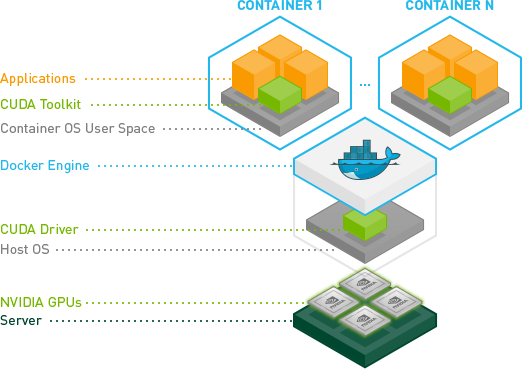
- At the bottom is the Nvidia GPU that supports CUDA.
- Next is the host machine with Nvidia drivers installed.
- Then is the Nvidia Container Toolkit that allows container applications to call the host machine’s GPU.
- At the top is the container, which contains the CUDA toolkit for programming and calling the GPU.
Setting Up CUDA Programming and Deep Learning Environment Container
Preparing the Host Machine
Before creating and deploying the container, we need to ensure that Nvidia drivers, Docker, and Nvidia Container Toolkit are installed on the host machine.
-
Nvidia Drivers: Please refer to the previous article Nvidia GPU (3): Games, CUDA Programming, Deep Learning, Docker Containers, etc. on Fedora for installing Nvidia drivers on Fedora system through RPM Fusion. You can confirm whether the Nvidia drivers are installed successfully by running the following command:
1nvidia-smiIf running the above command correctly outputs the current status of the GPU as shown below, it means the drivers are installed successfully:
 1
 2
 3
 4
 5
 6
 7
 8
 9
10
11
12
13
14
15
16
17
18
+-----------------------------------------------------------------------------------------+ | NVIDIA-SMI 575.64.05 Driver Version: 575.64.05 CUDA Version: 12.9 | |-----------------------------------------+------------------------+----------------------+ | GPU Name Persistence-M | Bus-Id Disp.A | Volatile Uncorr. ECC | | Fan Temp Perf Pwr:Usage/Cap | Memory-Usage | GPU-Util Compute M. | | | | MIG M. | |=========================================+========================+======================| | 0 NVIDIA GeForce RTX 5070 Ti Off | 00000000:02:00.0 On | N/A | | 0% 42C P8 18W / 300W | 2837MiB / 16303MiB | 1% Default | | | | N/A | +-----------------------------------------+------------------------+----------------------+ +-----------------------------------------------------------------------------------------+ | Processes: | | GPU GI CI PID Type Process name GPU Memory | | ID ID Usage | |=========================================================================================| | 0 N/A N/A 2540 G /usr/bin/ksecretd 3MiB |Then record the CUDA version number corresponding to the current driver, for example, the above shows support for CUDA 12.9.
-
Docker: Please refer to the Docker official documentation, the main steps are as follows:
1
2
3
4
sudo dnf -y install dnf-plugins-core sudo dnf-3 config-manager --add-repo https://download.docker.com/linux/fedora/docker-ce.repo sudo dnf install docker-ce docker-ce-cli containerd.io docker-buildx-plugin docker-compose-plugin sudo systemctl enable --now dockerYou can run the following command to verify whether the installation was successful:
1sudo docker run hello-worldIf you don’t want to use
sudoto run Docker, you need to add the current user to thedockergroup:1 2sudo usermod -aG docker $USER newgrp docker -
Nvidia Container Toolkit: Please refer to the Nvidia official documentation for installation, the main steps are as follows:
1 2 3 4 5 6 7curl -s -L https://nvidia.github.io/libnvidia-container/stable/rpm/nvidia-container-toolkit.repo | \ export NVIDIA_CONTAINER_TOOLKIT_VERSION=1.17.8-1 sudo dnf install -y \ nvidia-container-toolkit-${NVIDIA_CONTAINER_TOOLKIT_VERSION} \ nvidia-container-toolkit-base-${NVIDIA_CONTAINER_TOOLKIT_VERSION} \ libnvidia-container-tools-${NVIDIA_CONTAINER_TOOLKIT_VERSION} \ libnvidia-container1-${NVIDIA_CONTAINER_TOOLKIT_VERSION}After installation, you can run the following command to verify whether the Nvidia Container Toolkit is installed successfully (note that the CUDA version number here should be consistent with your own version number):
1docker run --rm --gpus all nvidia/cuda:12.9.1-base-ubuntu24.04 nvidia-smiIf you can correctly output the status information of the Nvidia GPU as when running the
nvidia-smicommand on the host machine, it means that the Nvidia Container Toolkit is installed successfully.
Creating and Deploying the Container
-
Choosing the Image
Nvidia provides a variety of container images for CUDA programming and deep learning. We can choose the appropriate container to create and deploy based on our needs on their Docker image site. There are many types of containers, which can be roughly divided into the following two categories:
-
General Images: Suitable for defining some more general CUDA programming and deep learning environments. There are different types inside:
- Base Image: Such as
nvidia/cuda:12.9.1-base-ubuntu24.04, this is a basic CUDA image that contains the basic environment of Ubuntu 24.04 and CUDA 12.9.1, suitable for users who need to customize the development environment. - Deep Learning Framework Image: Such as
nvidia/cuda:12.9.1-devel-ubuntu24.04, this is an image that contains the CUDA development environment, users do not need to install the CUDA development toolkit again, suitable for users who need to do CUDA programming. - Runtime Image: Such as
nvidia/cuda:12.9.1-runtime-ubuntu24.04, this is an image that only contains the runtime environment, suitable for users who only need to run CUDA applications.
- Base Image: Such as
-
Specialized Images: Suitable for some specific deep learning frameworks and applications. There are also different types inside:
- TensorFlow Image: Such as
nvidia/13.0.0-tensorrt-devel-ubuntu24.04, this is an image that contains TensorFlow and CUDA, suitable for users who need to use TensorFlow for deep learning. - cudnn Image: Such as
nvidia/13.0.0-cudnn-devel-ubuntu24.04, this is an image that contains cuDNN and CUDA, suitable for users who need to use cuDNN for deep learning. - PyTorch Image: Such as
nvidia/pytorch:23.08-py3, this is an image that contains PyTorch and CUDA, suitable for users who need to use PyTorch for deep learning.
- TensorFlow Image: Such as
-
-
Creating a Custom Image
We can directly use the images provided by Nvidia to create and deploy containers, but these images are relatively basic and may not meet our needs. Therefore, we can create a custom image based on these images by writing a Dockerfile to define the environment we need. Here is an example Dockerfile that creates a CUDA programming and deep learning environment based on the
nvidia/cuda:12.9.1-devel-ubuntu24.04image:1 2 3 4 5 6 7 8 9 10 11 12 13 14 15 16 17 18 19 20 21 22 23 24 25 26 27 28 29 30 31 32# Base: CUDA 12.9 + Ubuntu 22.04 FROM nvidia/cuda:12.9.1-devel-ubuntu24.04 ENV DEBIAN_FRONTEND=noninteractive # Install system dependencies and sudo USER root RUN apt-get update && apt-get install -y --no-install-recommends \ build-essential \ gcc-14 g++-14 \ cmake \ git \ wget \ curl \ sudo \ bzip2 \ ca-certificates \ zsh \ && rm -rf /var/lib/apt/lists/* # Update alternatives to use GCC 14 RUN update-alternatives --install /usr/bin/gcc gcc /usr/bin/gcc-14 100 \ && update-alternatives --install /usr/bin/g++ g++ /usr/bin/g++-14 100 # Give ubuntu user passwordless sudo RUN echo "ubuntu ALL=(ALL) NOPASSWD:ALL" >> /etc/sudoers # Switch to ubuntu user USER ubuntu WORKDIR /workspace CMD ["/bin/bash"]Above Dockerfile creates a container based on the
nvidia/cuda:12.9.1-devel-ubuntu24.04image. Besides the basic CUDA development environment, I also did the following configurations:- added the default user
ubuntuto thesudogroup, so that thesudocommand can be used inside the container. - installed some commonly used tools and libraries, such as
build-essential,git,wget,curl,vim, etc. - installed zsh, as I am used to using oh-my-zsh as a shell tool.
In addition, I am also used to customizing the terminal with
oh-my-zshandpowerlevel10k, and usingmambaas a development environment management tool. But these are more personalized configurations, just install and configure them inside the container as mentioned before. - added the default user
-
Create docker-compose.yml
To manage and deploy containers conveniently, we can use
docker-composeto create adocker-compose.ymlfile. This file can be placed in the same directory, such as~/docker/cuda-dev/docker-compose.yml. Here is a simple example ofdocker-compose.yml:1 2 3 4 5 6 7 8 9 10 11 12 13 14 15 16 17 18 19 20 21version: "3.9" services: cuda-dev: build: . container_name: cuda-dev runtime: nvidia deploy: resources: reservations: devices: - driver: nvidia count: all capabilities: [gpu] environment: - NVIDIA_VISIBLE_DEVICES=all - NVIDIA_DRIVER_CAPABILITIES=compute,utility volumes: - /home/${USER}/develop:/home/ubuntu - /run/media/${USER}/Disk1/devdata:/data tty: trueThis configuration file defines a service named
cuda-devthat uses theDockerfilewe created earlier to build the image. I created aworkspacedirectory in the home directory of the host machine to store development files and mounted it to the/home/ubuntudirectory in the container. At the same time, I also mounted an entire disk from the host machine to the/datadirectory in the container, which makes it convenient to access files on the host machine within the container.The reason for choosing this mounting method is to match the design above:
- Mount the
developfolder to the/home/ubuntudirectory in the container, so if we install directly to/home/ubuntuor put development files in this directory within the container, all changes will be directly saved to thedevelopfolder on the host machine. - Mount the
/run/media/${USER}/Disk1/devdatadirectory of the host machine to the/datadirectory in the container, so if we put the data needed for development on thedevdatadirectory of theDisk1hard drive, it can be directly accessed within the container.
- Mount the
-
Build and Run the Container
In the terminal, navigate to the directory where the
docker-compose.ymlfile is located, such as~/docker/cuda-dev, and then run the following command to build the container:1docker compose buildAfter the build is complete, use the following command to run the container:
1docker compose up -dAfter running, you can check the status of the container with the following command:
1docker ps | grep cuda-dev -
Access and Test the Container
After the container is running, you can enter the terminal of the container with the following command:
1docker exec -it cuda-dev bash-
Check CUDA Compiler
After entering the container, you can test whether the CUDA programming environment is working properly, for example, run the following command to check the CUDA version:
1nvcc --versionIf the correct CUDA version information is output, it means that the CUDA compiler is working properly.
-
Check if the Container Can Call the Nvidia GPU
Run the following command to check the status of the Nvidia GPU:
1nvidia-smiIf the correct status information of the Nvidia GPU is output, it means that the container can call the Nvidia GPU.
-
Test Compiling CUDA Programs
Next, let’s try to compile the CUDA-Sample program that failed to compile on the host machine. Go to the CUDA-Sample GitHub repository and the Release page, choose the version corresponding to your CUDA version to download, such as
CUDA Samples v12.9. Place the downloaded file in the~/docker/cuda-dev/workspacedirectory of the host machine, or you can use thewgetcommand to download it directly in the container:1wget https://github.com/NVIDIA/cuda-samples/archive/refs/tags/v12.9.tar.gzThen decompress it in the container:
1
2
tar -xzvf v12.9.tar.gz cd cuda-samples-12.9Then it’s the normal compilation and running process:
1
2
3
mkdir build && cd build cmake .. make -j4After the compilation is complete, you can run some sample programs to test whether the CUDA programming environment is working properly, for example:
1
2
cd 1_Utilities/deviceQuery ./deviceQueryIf the relevant information of the Nvidia GPU is output, it means that everything is done!
-
Test if Python Can Call the GPU
After entering the container, you can test whether Python can call the GPU, for example, run the following Python code:
1
2
3
import torch print(torch.cuda.is_available()) print(torch.cuda.get_device_name(0))If
Trueand the name of your Nvidia GPU are output, it means that Python can call the GPU.
-
-
Using VS Code for Remote Development
If you want to use this container for remote development in VS Code, you can install the Remote - Containers extension.
After opening VS Code on the host machine, click the remote connection icon in the lower left corner, select “Attach to Running Container”, and then select the
cuda-devcontainer to connect to it.Next, you can directly enter the container command line through the terminal of VS Code, or you can directly open the working directory in the container with VS Code for development.
Issues
When using YOLO to train models in the CUDA development container, I encountered an error:
|
|
The reason for this error is that the default shared memory size of the Docker container is only 64MB, which is too small to meet the requirements when training YOLO models. This issue can be resolved by increasing the shared memory size of the Docker container. You can do this by adding the shm_size parameter in the docker-compose.yml file, for example:
|
|
Here, the shm_size can be adjusted according to your needs, such as 8gb, 16gb, etc. After adding it, rebuild and run the container again.