
Why migrate?#
My previous shell setup used Oh My Zsh with Powerlevel10k. It was polished and fast, but it tied the prompt to Zsh. I wanted the same visual language on macOS, Linux, HPC clusters, and Windows PowerShell, so I moved the prompt to Oh My Posh.
Oh My Posh separates the prompt theme from the shell. One JSON configuration can
therefore be initialized by both Zsh and PowerShell. The result is my Koi-fish
(锦鲤) theme, jinli.omp.json,
with Catppuccin-inspired colors.
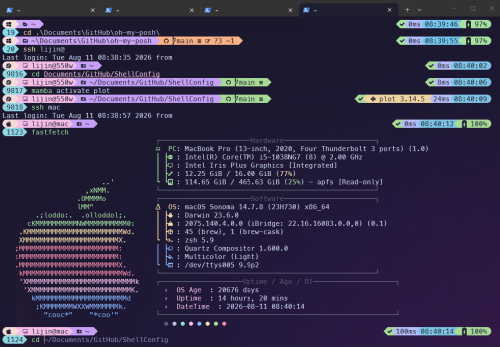
What the Jinli theme shows#
The theme is designed to keep useful context visible without turning the prompt into a wall of information:
- The path segment uses context-aware icons for home, locked directories, GitHub, Git, npm, Downloads, Pictures, and ordinary folders.
- Git information shows the repository, branch, worktree state, and change counts.
- Python and Node versions appear on the right when they are relevant.
- SSH sessions receive a remote icon, making it obvious when a shell is not local.
- Battery, time, command duration, and exit status adapt to the machine and remain aligned on the right.
- The same theme works in Zsh and PowerShell, while the surrounding setup also supports Linux, macOS, Windows, and NixOS.
The configuration model#
The important change is separating stable shared configuration from local configuration that tools are allowed to modify:
- The repository’s
.zshrc.commoncontains the shared Zsh setup. ~/.zshrcis a normal, user-managed file created by the installer. It adds the Oh My Posh executable directory before sourcing.zshrc.common.- Tool installers such as Conda and OpenClaw can append to
~/.zshrcwithout changing the Git-managed shared file. - An existing
~/.zshrc.localis still sourced afterward for backward compatibility with older installations. - The theme is linked to
~/.config/oh-my-posh/jinli.omp.jsonon macOS/Linux.
For example, machine-specific settings belong in ~/.zshrc:
| |
This arrangement keeps private variables, cluster modules, workstation-only aliases, and local tool paths out of the shared repository configuration.
Oh My Zsh remains optional#
Oh My Posh is the prompt engine, not a replacement for every Zsh plugin. The shared configuration enables zsh-autosuggestions and fast-syntax-highlighting.
If Oh My Zsh is already installed, the installer places and loads these plugins
through its custom plugin directory. Otherwise, it installs them under
~/.local/share/zsh/plugins and loads them directly. Oh My Zsh itself is not
installed just to enable these plugins.
The shared Zsh setup also provides case-insensitive, substring-aware completion.
For example, cd dev<Tab> can complete a directory such as
itrip-dev-doc. It enables a directory stack through AUTO_PUSHD and
PUSHD_IGNORE_DUPS, so cd -<number> and dirs -v can be useful when moving
between projects.
Installation#
macOS and Linux#
Run the installer as a normal user. On macOS, install Homebrew first:
| |
The installer asks where to clone the repository. Press Enter to use
~/Documents/GitHub/ShellConfig, or enter another directory. You can set
SHELL_CONFIG_DIR beforehand to use it as the suggested destination.
The script installs Oh My Posh and its Zsh dependencies, installs the plugins,
creates the theme link, creates the local ~/.zshrc, and offers to install
Meslo Nerd Font. Restart the terminal afterward or run exec zsh.
To update an existing installation, run the updater from the repository itself:
| |
The updater uses its own location to find the repository, so it continues to
work even when the repository was installed somewhere other than the default
directory. It updates the checkout and theme link while preserving the local
~/.zshrc.
Windows PowerShell#
Run the installer as your normal user:
| |
The PowerShell script uses WinGet when Oh My Posh or Git is missing, asks where
to clone the repository, and updates only the ShellConfig-managed block in
$PROFILE. Existing user and tool configuration in the profile is preserved.
The theme is loaded directly from the selected repository directory; Windows
does not use the Unix ~/.config theme link.
NixOS#
The repository also exposes a NixOS module through its flake:
| |
Then rebuild the host and start a new session:
| |
Fonts and terminal setup#
The theme uses Nerd Font glyphs. Install and select MesloLGM Nerd Font in the terminal profile; otherwise icons may appear as boxes. For WSL, run the Linux installer inside WSL but install and configure the font on Windows.
HPC and machines without sudo#
The macOS/Linux installer asks about sudo before attempting package
installation. It checks for curl, git, unzip, and zsh. If sudo is
unavailable and only Zsh is missing, it can build ncurses and Zsh under
~/.local by default, or under $SHELL_CONFIG_PREFIX when that variable is
set. A compiler and make must already be available, usually through cluster
modules.
Other missing dependencies must be provided by the cluster or installed in the
user’s own environment. The local ~/.zshrc is the right place to load modules
and add user-local executable directories to PATH.
Keeping Neovim separate#
The LazyVim installer is deliberately separate from the prompt installer. Oh My Posh configures the shell prompt, while LazyVim manages the Neovim configuration and editor plugins.
| |
The installer checks for Neovim 0.11.2 or newer, backs up existing Neovim
configuration and data, and clones the LazyVim starter into ~/.config/nvim.
It no longer manages a legacy ~/.vimrc. Start nvim afterward to install
plugins, then run :checkhealth or :LazyHealth.
Result#
The prompt now has one theme across Zsh and PowerShell, the shared pieces live
in Git, and machine-specific tools can safely edit the local ~/.zshrc. That
structure makes the configuration easier to carry between a laptop, Linux
workstation, HPC cluster, and Windows without turning every machine-specific
change into a shared-config conflict.