
Introduction#
Previously, we discussed building private large language model services, where we used Ollama as the backend service and LobeChat as the frontend, communicating through API calls to the backend Ollama to implement conversations.
Recently, I have been trying to use OpenClaw, but its token consumption rate is too fast, so I thought about running a local large language model to provide tokens. After talking with ChatGPT, it told me that in this case, it’s better to use vLLM rather than Ollama, because vLLM provides API compatibility with OpenAI, supports Copilot, and has better performance. So I decided to switch to vLLM.
Introduction#
vLLM#
vLLM and Ollama are both tools for running large language models (LLM) on your own computer or on a server, but their use cases differ. Simply put, vLLM is focused on efficiently running large language models, while Ollama focuses on making it easy to run large language models.
Additionally, vLLM provides API compatibility with OpenAI. If the services we want to run depend on commercial model APIs like OpenAI’s, and support custom model providers, we can connect to our own deployed vLLM.
Ollama#
For an introduction and deployment instructions for Ollama, please refer to the first article in this series.
Since Ollama uses some custom REST APIs that are incompatible with OpenAI’s API, it cannot directly connect to many services that use large language models. However, developers have created a tool LiteLLM that can call Ollama and is compatible with OpenAI’s API.
We only need to deploy this tool along with the Ollama container and make some settings, and it will be able to provide API compatibility with OpenAI’s API.
Comparison and Considerations for vLLM and Ollama#
GPU Memory Usage
When running, the biggest difference we can perceive between vLLM and Ollama is that deploying vLLM requires loading the entire model into the GPU’s memory, even when the model is idle (not being called), vLLM will still occupy this portion of memory.
In other words, vLLM can hardly run alongside other programs that heavily use the graphics card. For example, after running vLLM, if you want to play games, you need to take vLLM offline first.
Ollama, on the other hand, does not have this problem. Ollama only loads the model into memory when it is called. When you want to play games, you don’t need to shut down Ollama, as long as you don’t call Ollama during your gaming session, it can coexist peacefully with your game.
Number of Callable Models
After deploying Ollama, we can download multiple models, and users can decide which one to call.
However, after deploying vLLM, the model loaded into GPU memory is fixed — one vLLM container can only load one model. To choose between models, you would need to deploy multiple vLLM containers simultaneously. This is clearly impractical for personal users, as our GPUs generally cannot handle that. If you want to load multiple models, you can only use very small ones, which defeats the purpose.
Deploying the Large Language Models and Frontend#
Overview#
I have two computers each with a GPU with 16GB of VRAM. I chose to deploy vLLM on Computer A and deploy Ollama with a vLLM-compatible interface on Computer B (let’s call it vOllama for now). The interfaces of vLLM and vOllama are exposed to the public internet via domain names.
The Open WebUI frontend is deployed on any one of the computers (either A or B, or another Computer C), which makes it easy to connect to our self-deployed large language models.
Deploying vLLM#
docker-compose#
The docker-compose.yml file is as follows:
| |
The MODEL, MODEL_PARAMETERS, and other variables are defined in the environment variable file .env:
| |
Here, HF_TOKEN is the Hugging Face token, which we need to download large language models from Hugging Face.
vLLM can only load one model at a time. We chose Qwen/Qwen2.5-Coder-14B-Instruct-AWQ, which requires approximately 14GB of VRAM to load.
Testing#
Enter a command like the following in the terminal to test whether vLLM has been deployed successfully:
| |
If you receive a response similar to the following, vLLM has been successfully deployed and is accessible via the domain name:
| |
In the terminal, this JSON will be displayed compressed on a single line.
Deploying vOllama#
Configuration Files#
The docker-compose.yml file is as follows:
| |
Here we deploy two containers, ollama and litellm, both using the traefik-net network we created earlier. We still use Cloudflare Tunnel to reverse proxy the vOllama service.
litellm requires a configuration file litellm-config.yml, as shown below:
| |
The configuration file serves two main purposes:
model_listtellslitellmwhich large language models we have running inollama. When we download and install additional models in Ollama, we need to update this file to include the new models.- Since we are exposing the models on the public internet, we need to set an API key (i.e.,
master_key) to control access. Anyone who does not provide the API key will not be able to call our models.
Installing Large Language Models#
- Use
docker compose up -dto deploy the Ollama container. - After a successful deployment, Ollama is empty with no models downloaded. Use
docker exec -it ollama ollama run qwen3.5:0.8bto download and run theqwen3.5:0.8bmodel. - After installation, you can continue downloading other models.
- Use
docker exec -it ollama ollama listto list the installed models.
Testing#
Use the following command to test whether the deployment was successful:
| |
If you receive a response similar to the following, vOllama has been successfully deployed and is accessible via the domain name:
| |
In the terminal, this JSON will be displayed compressed on a single line.
Deploying Open WebUI#
Using only curl or APIs to call the deployed models is clearly inconvenient — we need to deploy a web-based client. Here we choose the open-source client Open WebUI.
Introduction to Open WebUI#
Open WebUI is an open-source web client for large language models, with a style similar to OpenAI’s ChatGPT interface. It allows us to connect to our self-deployed vLLM or Ollama models, and also supports connecting to various commercial models (API key required).
Deploying Open WebUI#
The docker-compose.yml file is as follows:
| |
The OPENAI_API_BASE_URL and OPENAI_API_KEY here point to our locally deployed vLLM. These can be left blank and configured later in the graphical interface.
Use the following command to start the open-webui container:
| |
Open WebUI Configuration#
After setting up the reverse proxy, we can access Open WebUI via the domain name. On first access, Open WebUI will ask us to set up an administrator account and password.
After logging in with the administrator account, click the avatar in the upper right corner and you will see the “Admin Panel” option. Click to enter and configure the backend model services that Open WebUI needs to connect to.
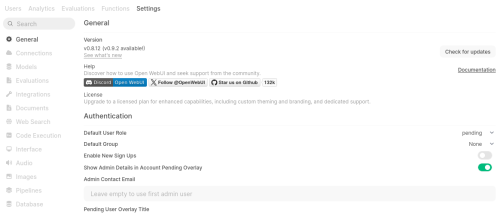
In the “Settings” page of the “Admin Panel”, there is a “Connections” option where you can add the Ollama service, vLLM service, or vOllama service we deployed earlier, as well as commercial large language model services (such as OpenAI, Azure, Anthropic, etc.).
After adding them, click the “Models” option in the “Settings” page, and you can see the available models in the Ollama or vLLM service. These models are set to “private” by default. You can click the edit button on the right side of a model and click the “Access” option in the model settings to configure which users can access that model.
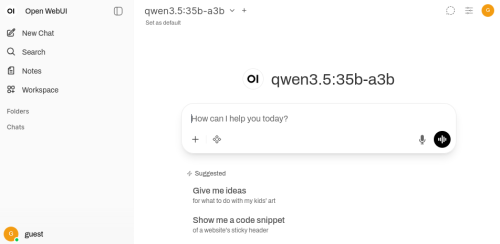
Finally, after configuring the models, you can use Open WebUI just like ChatGPT. After entering a question, Open WebUI will call the vLLM or Ollama service we deployed earlier to get a response:
Troubleshooting#
Installing Qwen3.6 with Ollama#
When using Ollama to install the uncensored Qwen3.6 model Qwen3.6-35B-A3B-Uncensored-HauhauCS-Aggressive, you may encounter installation failures. The error message is as follows:
| |
This issue has been discussed on GitHub:
https://github.com/ollama/ollama/issues/14503
The reason is that after downloading the Qwen3.6-35B-A3B-Uncensored-HauhauCS-Aggressive model, the Modelfile generated by Ollama is incorrect. It contains two From /root/.ollama/xxx lines, indicating that Ollama is trying to load two model files when in fact only one is needed. We need to delete the second From /root/.ollama/xxx line or comment it out with #, then save and re-run the model.
However, the Modelfile does not seem to be explicitly created. We need to enter the container first:
| |
Then execute the following command inside the container to generate the file:
| |
After commenting out or deleting the second From /root/.ollama/xxx line, save and exit, then recreate the model:
| |