Motivation
When using Linux systems, it is often necessary to monitor the system status in real-time, such as monitoring CPU and GPU usage and temperature while gaming, checking VRAM usage when training machine learning models, or tracking network speed when downloading large files. Although there are graphical tools like System Monitor and command-line tools like htop and nvidia-smi available for monitoring system status, these tools usually require manual opening and do not display information directly on the desktop, which can be inconvenient at times.
Conky is a lightweight system monitoring software that can display various system status information directly on the desktop in real-time, allowing users to easily check their system status at any time. I have been using it for a long time and find it quite useful. However, I previously used a heavily modified theme that met my needs but had poor portability. Recently, after changing my computer, I decided to create a new elegant, user-friendly, and highly portable Conky theme and share the installation and usage methods here.
Installing Conky
Conky Versions
Most Linux distributions provide Conky packages in their software repositories, but the versions are often outdated. Many Conky packages lack Lua support, do not support NVIDIA GPU monitoring, or have poor support for Wayland. If you install Conky using package managers like apt (for Ubuntu, Debian, etc.), dnf (for Fedora, etc.), or pacman (for Arch Linux, etc.), it is recommended to check whether the installed Conky package supports the features you need.
In addition to distribution repositories, the Conky GitHub repository provides Conky binary packages in AppImage format, which are more up-to-date and include Lua support and NVIDIA GPU monitoring support. This version is recommended. You can download it from the Releases page.
Installation Steps
Installing via Package Manager
You can refer to the Installation Guide in the GitHub repository. Below are some common installation methods for popular Linux distributions.
Debian/Ubuntu
In Debian and Ubuntu, you can search for available Conky packages using the following command:
|
|
You will typically see multiple Conky-related packages, such as conky-all, conky-lua, etc. You can check the description of the conky-all package to confirm its version and supported features:
|
|
Finally, you can install Conky using the following command:
|
|
Fedora
In Fedora, you can search for available Conky packages using the following command:
|
|
Then, check the description of the conky package using the following command:
|
|
Finally, you can install Conky using the following command:
|
|
Arch Linux
If you are using Arch Linux, you can search for available Conky packages using the following command:
|
|
Then, check the description of the conky package using the following command:
|
|
Finally, you can install Conky using the following command:
|
|
Installing via AppImage
You can refer to the installation instructions in the GitHub repository. Below are the brief installation steps:
-
Download the latest Conky AppImage package from the Releases page, for example,
conky-*.AppImage. -
Make the downloaded AppImage package executable:
1chmod +x conky-*.AppImage -
Run the Conky AppImage package:
1./conky-*.AppImage -
(Optional) Move the Conky AppImage package to a system directory, such as
/usr/local/bin/, so that you can run Conky from anywhere in the command line:1sudo mv conky-*.AppImage /usr/local/bin/conky -
(Optional) Add the Conky AppImage package to the start menu for easier launching in the future. You can create a
.desktopfile with the following content:1 2 3 4 5 6[Desktop Entry] Name=Conky Exec=/path/to/conky-*.AppImage Icon=conky Type=Application Categories=Utility;System;Save the above content as
~/.local/share/applications/conky.desktop, and replace/path/to/conky-*.AppImagewith the actual path to the AppImage package.
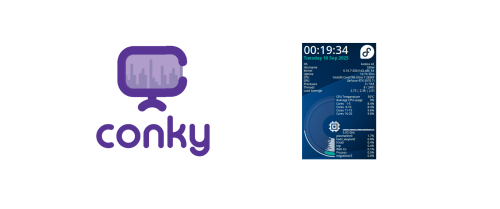
Running Conky will display system status information on the desktop, as shown in the image below:

Configuring Conky
Configuration File
Conky’s configuration file is usually located at ~/.config/conky/conky.conf. If this file does not exist, you can generate a default configuration file by running the following command:
|
|
Here, the generated default configuration file is relatively simple and can be modified and expanded as needed. Conky’s configuration file uses a syntax similar to the INI format, allowing you to set various options and display content. For specific configuration options, you can refer to the Conky official documentation.
I recommend using Lua scripts to write Conky configuration files, as this allows for more flexible control over display content and styles. Below is a simple Lua configuration file example:
|
|
Using Conky Themes
Creating a Conky configuration from scratch can be cumbersome, so I recommend using existing Conky themes. Many Conky themes can be found online, such as:
- The Conky GitHub repository contains some user-shared themes
- Conky Themes website has many user-shared Conky themes.
- DeviantArt also has many Conky themes.
Here, I recommend a Conky theme I developed myself, called jinli-conky.
The effect is shown in the image below:

This theme supports monitoring various system statuses such as CPU, memory, disk, network, and NVIDIA GPU. It features a simple and elegant style, is written purely in Lua, and is easy to modify and extend.
jinli-conky Theme
Installing the jinli-conky Theme
Installation instructions can be found on the jinli-conky GitHub repository. The main steps are as follows:
-
Clone the jinli-conky repository:
1git clone https://github.com/jin-li/jinli-conky.gitIt is best to clone it into the
~/.config/conky/directory. -
Install fonts (optional)
The jinli-conky theme uses some custom fonts to display certain icons. If you want to display these icons, you need to install these fonts first. It is okay if you do not install the fonts; the icons will be displayed as text.
Navigate to the
jinli-conky/fonts/directory, where you will find a font file namedsubset-SymbolNF.ttf. You can double-click to install it. Alternatively, you can install it via the command line:1 2 3cd jinli-conky/fonts/ cp subset-SymbolsNF.ttf ~/.local/share/fonts/ fc-cache -fv -
Navigate to the jinli-conky directory and run the
start.shscript to install the theme:1 2cd jinli-conky ./start.shAfter running the script, the Conky theme will automatically start and display on the desktop.
-
Auto-start on boot (optional)
Running the startup script in the previous step will generate an auto-start entry file named
conky-start.desktop. If you want Conky to automatically start each time you log in, you can copy it to the~/.config/autostart/directory. First, check if the~/.config/autostart/directory exists; if not, you can create it:1mkdir -p ~/.config/autostart/Then copy the auto-start entry file:
1cp conky-start.desktop ~/.config/autostart/
Configuring the jinli-conky Theme
After running the start.sh script, a configuration file named jinli-config.lua will be generated in the theme directory. This configuration file is a copy of the theme’s default jinli-config.example.lua file. You can edit this configuration file to modify various options of the theme, such as display content and styles.
Some commonly used configuration options include:
- Scaling Factor: The default screen resolution for the theme is 1920x1080. If your screen resolution is different, you can modify the
scalingoption to adjust the size of the theme. For example, if your screen resolution is 3840x2160, you can change thescalingoption toscaling = 2.0(3840/1920). - Overall Parameters: You can modify overall display width, height, position, etc. You can also modify the refresh interval (default is 1 second), transparency, change fonts, and adjust the distance from the screen edges.
- Individual Components: The theme includes components such as
Clock,System Info,CPU,Memory,Disk,Network, andGPU. You can enable or disable individual components, or modify the display style and parameters of specific components, such as displaying the gauge on the right side or changing the display order of components.
After modifying the configuration file, save the file, and the changes will take effect immediately without needing to restart Conky.