Motivation
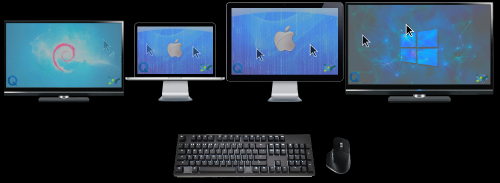
It is often necessary to use more than one computer at work, for example, there is a desktop computer with Linux system in the office, and another laptop computer with macOS For classes or meetings.Sometimes it is necessary to use these two computers at the same time to complete a certain task. At this time, switching back and forth with two sets of mice and keyboards will become a problem. It is very troublesome, Barrier is a free software that can share mouse and keyboard across multiple computers.
Barrier已于2021年停止维护,现推荐使用InputLeap。InputLeap和Barrier是同源的,功能和使用方法与Barrier几乎一致。本文所讲的Barrier的安装和设置基本也都适用于InputLeap。 Update: In 2021, Barrier stopped maintaining, now I recommend to use InputLeap as an alternative. InputLeap and Barrier are of the same source, and the functions and usage methods are almost the same as Barrier. The installation and settings of Barrier mentioned in this article are basically applicable to InputLeap. On Fedora 42 system, InputLeap 3.0.2 version will crash when set as server, while 3.0.3 version works fine.
Introduction
In fact, the keyboard and mouse sharing software is not limited to the barrier, there are other Mouse Without Borders, Synergy, etc., but Mouse Without Borders is only available for Windows systems, while Synergy is a paid software.
Barrier is a software with the same source as Synergy.Originally Synergy was written based on Chris Schoeneman A free software developed by CosmoSynergy, Synergy began to charge after iterating several versions, so some teams started based on Synergy’s open source kernel has again developed a free version of the barrier.
Barrier is a free and open source cross-system keyboard and mouse sharing software. The main features are:
- Shared mouse and shared keyboard
- shared clipboard
- Across systems. Available for Windows, macOS and Linux systems
- Free, open source
Installation
Windows and macOS
There are already packaged installation packages for Windows and macOS systems, which can be downloaded from the release page of the Barrier open source GitHub repository: https://github.com/debauchee/barrier/releases.Select the installation package with the suffix exe for the Windows system, and select the installation package with the suffix dmg for the macOS system.
Windows
Just double-click the installation package and install it step by step under Windows.
macOS
The installation under macOS is relatively more complicated, mainly because the publisher of Barrier or InputLeap is not certified, so there will be some security restrictions during installation.Therefore, we need to manually bypass these settings.
-
When downloading the installation package under macOS, you need to pay attention to whether your computer is an Intel chip or an Apple chip————Download the x86 version of the dmg installation package for Intel chips, and download the AppleSilicon version of the installation package for Apple chips.In addition, I use macOS version Sequoia 15.5, and after using InputLeap 3.0.3 version of the installation package, it will show that it cannot be installed, while InputLeap 3.0.2 version is fine, so here we use InputLeap 3.0.2 version.
-
After double-clicking the installation package, it will show that it cannot be installed for security reasons. Click the question mark icon in the upper right corner, and the following window will open:
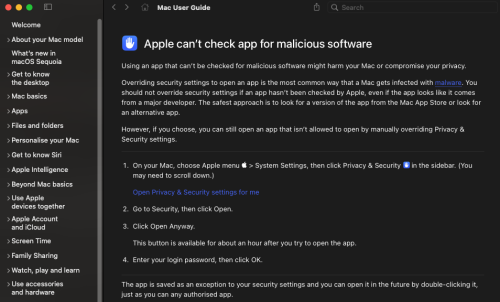
Then follow the prompts to enable security settings, and then install Barrier or InputLeap.
Note: After opening the “Security” settings by clicking the link in the above figure, you may not see the option to allow Barrier or InputLeap to be installed. At this time, you need to try to close and re-open Barrier or InputLeap installation package, then you will see “Open Anyway” option.
Linux
For Debian-based Linux systems (such as Ubuntu, etc.), you can directly use the package management tool apt to install:
|
|
Other Linux systems can be installed through the package management tool snap:
|
|
If the system does not come with snap, you need to install snap first.
Configuration and Usage
Barrier settings are divided into server and client.
Server
The computer directly connected to the keyboard and mouse is the server.
- Open Barrier on the server computer and check Server.
- Write down the IP address of the server (usually the LAN IP).
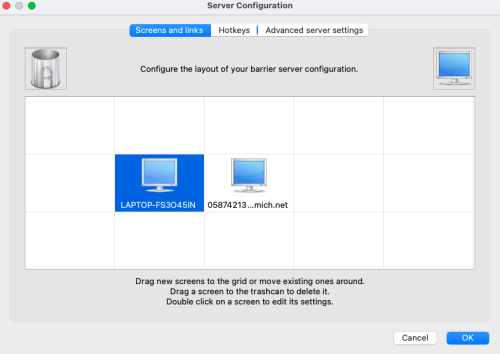
- Tick Manually configure the server, and then click “Configure Server”.
- Drag the computer icon on the upper right side of the configuration interface to the lower grid, double-click the computer icon, and change the computer name to the name displayed on the client computer (you can find it in the “screen name” column of the client barrier software interface).The relative position of the two computer icons in the grid corresponds to the screen position of the actual computer.
Client
The computer to use the keyboard and mouse of the server computer is the client.
- Open Barrier on the client computer and check Client.
- Fill in the IP address of the server in the server IP column (Server IP).If this column is not editable, uncheck “Auto config”.
- Click “Barrier” on the Barrier menu bar, select “Change Settings”, make sure the network port (Port) used is 24800, and check “Enable SSL”.
- Restart or reload (Reload) Barrier.
Common Issues
Make sure the server and client computers are on the same network.
If the mouse and keyboard cannot be shared successfully, you can check the above settings and restart the Barrier software.
If it still doesn’t work, you can click “Show Log” in the menu bar to view the error message in the log.